

Millions of people now work from a kitchen table, a sofa corner or a spare-room desk that was never meant for eight hours of screen time. The aches that follow, in the neck, lower back and wrists, are common, and most of them respond to simple changes in setup and habit.
In this article we will explore how a workstation should fit your body, how to adjust each part of it, which low-cost fixes work best, and when pain deserves a professional opinion.
A home workstation hurts when the furniture fits poorly
Most office furniture is designed around a long list of fit adjustments, while most home furniture is designed to look good. A dining chair has a flat seat, a fixed height and no lumbar support, and a dining table is usually higher than a proper desk. The result is that shoulders creep upward, the head drifts forward and the wrists bend to reach the keyboard. None of this feels painful in the first ten minutes, which is why the problem tends to build slowly over weeks.
The body copes with awkward positions by loading a small number of tissues over and over. A head held forward of the shoulders asks the muscles at the back of the neck to work harder against gravity. A lower back that rounds into a slump shifts load onto the discs and ligaments of the spine. Wrists that are bent upward or sideways while typing narrow the space through which tendons and nerves travel. Each strain is small, but small strains repeated for hours add up.
It also helps to know that static posture is a bigger issue than any single position. Even a well-aligned sitting posture becomes tiring when held for long stretches, because muscles prefer to alternate between work and rest. People often blame their chair when the real issue is that they have not moved for three hours. A good setup reduces the load, and regular movement spreads whatever load remains across different tissues.
Laptops deserve a separate mention. A laptop joins the screen and the keyboard together, so you cannot place both at the right height at the same time. If the screen is at eye level, the keyboard is too high for your arms, and if the keyboard is at the right height, your head tilts down. Anyone using a laptop for most of the day will usually need an extra keyboard and mouse, plus a way to lift the screen.
Finally, pain at the desk rarely has one cause. Stress, poor sleep, low general activity and a sudden increase in working hours all make the body less tolerant of strain. That is why two people with the same chair can have very different symptoms. Treat the workstation as one part of the picture, and expect the best results when setup, movement and recovery all improve together.
Before changing anything, take a side-on photo of yourself working, or ask someone in your household to take one. Seeing your own posture often shows problems that do not register from the inside, such as a jutting chin or a rounded lower back. Keep the photo as a baseline, and take another after your adjustments. The comparison is a motivating, free way to check that the changes have worked.
Chair and seat position set the foundation
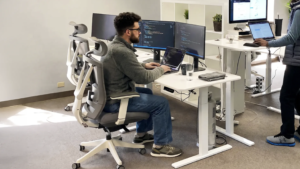
Begin with the chair, because everything else is measured from it. Sit back so your hips touch the back of the seat, then adjust the height until your feet rest flat on the floor with your knees at roughly the same level as your hips or a little lower. A commonly recommended knee angle is around 90 to 110 degrees, but the exact number matters less than feeling supported and not pinched behind the knee. If your feet do not reach the floor, use a footrest, a sturdy box or a firm stack of books.
Check the seat depth next. You should be able to fit about two or three finger widths between the front edge of the seat and the back of your knee. If the seat is too deep, you will either perch forward without back support or press the edge into your legs, which can feel uncomfortable and restrict circulation. A small cushion behind your lower back can effectively shorten a seat that is too deep.
Then look at the backrest. The lower back has a natural gentle inward curve, and a good chair supports it. If your chair has adjustable lumbar support, set it so the curve sits comfortably against your lower back without pushing you forward. If it does not, a rolled towel or a purpose-made lumbar cushion can do the job, and it should feel like gentle support rather than a firm push.
A slightly reclined backrest is often more comfortable than a rigidly upright one. Many people find an angle somewhat past vertical reduces load on the lower back, as long as the screen and keyboard are arranged so you are not leaning forward to reach them. If your chair has armrests, set them so your shoulders stay relaxed and your elbows rest lightly, without lifting the shoulders toward your ears. Armrests that are too high or too wide are a common cause of upper shoulder tension.
If you are working from a dining chair, you can improve it without buying anything. Add a firm cushion to raise the seat height if needed, place a rolled towel at the lower back, and use a footrest if your feet dangle. Test the setup for a full working day before deciding whether a new chair is worth the cost. A good chair is a useful investment, but a thoughtful setup of a modest chair often outperforms an expensive chair that has never been adjusted.
Allow time for the adjustments to settle in. A new chair height or a raised screen can feel strange for the first day or two, simply because your body is used to the old position. Make changes in small steps of a centimetre or two, and give each one a day before moving on. If something feels clearly worse after a couple of days, undo it and try a smaller change.
Screen height and distance protect the neck
Once the seat is right, set the desk and screen. The usual guidance is to place the screen directly in front of you, about an arm’s length away, with the top edge at or slightly below eye level. Sit upright, close your eyes, open them and look straight ahead; your gaze should land near the top third of the screen. If you wear bifocals or varifocals, you may need to lower the screen further so you are not tipping your head back to read.
Many home setups fail on this step because a laptop sits flat on the table. To raise it, use a laptop stand, a sturdy box or a stack of books, and then connect a separate keyboard and mouse. This is the single most useful change for anyone with neck pain who works on a laptop. If you cannot buy anything, a pile of large hardcover books works well enough, as long as it is stable and the angle suits you.
Distance matters as well as height. A screen that is too far away makes you lean forward and squint, while one that is too close strains the eyes. If you find yourself pushing your chin forward to read text, increase the font size or zoom level instead of moving closer. Text that is comfortable to read at arm’s length means your head can stay balanced over your shoulders.
Position matters for two screens too. If you use one screen mostly, place it directly in front of you and put the second one to the side at a slight angle. If you use both equally, place them together and center your body at the join. Constantly turning your head to one side to look at a main screen is a quiet cause of one-sided neck stiffness.
Glare and lighting affect posture more than people expect. If a window reflects on the screen, you will lean or tilt to see around it. Place the screen at a right angle to the window where possible, and use blinds or an adjustable lamp. Good lighting, together with regular looks into the distance, also helps reduce eye fatigue, which often shows up as neck and shoulder tension.
Phone use belongs in this picture as well. Many people spend the evening looking down at a phone with the head bent forward, which repeats the same neck position that the day at the desk has already tired. Lift the phone nearer to eye level when you can, and rest your elbows against your body to take the weight off the shoulders. Short, frequent changes of position matter more than any single rule.
Keyboard, mouse and wrist alignment
After the screen, sort out the typing area. Your upper arms should hang comfortably near your sides, with elbows bent to about a right angle or a little more open. Forearms should be roughly level with the floor or sloping slightly downward, and your wrists should stay in a straight line with the forearms. If the desk is too high for this, either raise the chair and use a footrest, or lower the work surface if it is adjustable.
Keep the keyboard close to the edge of the desk so you are not reaching forward. Reaching moves the elbows away from the body and loads the shoulders and upper back. The mouse should sit right next to the keyboard at the same height, so your arm does not have to stretch sideways. A common mistake is leaving the mouse far to the right on a wide desk, which keeps the shoulder in a held, outward position all day.
Wrist posture is the most important detail. Avoid resting the wrists on a hard edge while typing, and do not bend them upward or sideways. Light wrist rests can be helpful for pausing between bursts of typing, but they are not designed to be leaned on while the fingers move. Float the hands over the keys during typing, and rest the palms or forearms lightly when you stop.
Use a light touch. Many people strike the keys and grip the mouse harder than necessary, especially when stressed or rushing. Deliberately relaxing the hand now and then, and letting the mouse go between clicks, can reduce forearm tension. Larger or differently shaped mice suit some hands better than others, so choose one that lets your hand rest in a relaxed, natural shape.
For people who work with the mouse for hours, learning keyboard shortcuts is a simple way to reduce repetition. Switching the mouse to the other hand for part of the day can spread the load, although it takes patience at first. Voice input can help in short bursts when the wrists are sore. If tingling or numbness appears in the fingers, take that seriously, as the later section on warning signs explains.
If you use a tablet or a laptop away from the desk, the same principle applies: prop the device up, bring it toward your eyes and support your arms. Cheap tablet stands and small cushions on the lap can reduce the strain on the neck and wrists. Avoid typing for long periods on a touchscreen, which tends to produce hunched shoulders and thumb strain. A separate keyboard is a small purchase that pays off for anyone who writes a lot.
Movement breaks beat a perfect pose
No setup can remove the need to move. Research on sitting and health is broad, but the practical message in widely published guidance is consistent: reduce long unbroken periods of sitting and add regular movement through the day. A short break every 30 to 60 minutes is a commonly suggested rhythm, and it does not need to be dramatic. Stand up, walk to get water, stretch your arms overhead, and then return to the desk.
Build breaks into your day rather than relying on memory. A timer on your phone, a calendar reminder or a habit tied to something else, such as standing during phone calls, can work well. If you take calls, try pacing slowly or standing at a counter for part of the time. Many people find that a short walk after lunch resets both the body and the mind.
Standing desks are useful, but they are not a cure. Standing still for hours brings its own aches in the feet, knees and lower back, so the aim is variety, not a switch from one fixed position to another. A reasonable approach is to alternate between sitting and standing during the day, adjusting the schedule to what feels comfortable. If you do not own a height-adjustable desk, a kitchen counter or a high shelf can serve for short standing sessions.
Gentle mobility exercises can ease stiffness between breaks. Slow shoulder rolls, a chin tuck that draws the head back over the shoulders, and a seated twist taken within a comfortable range are common examples. Wrist and finger stretches, held gently without pain, help the forearms. Stretching should feel like mild tension, never sharp pain, and you should stop if a movement causes symptoms to flare.
General fitness matters too. Regular walking, strength work for the back and shoulders, and activity that you enjoy make the body more resilient to the demands of desk work. You do not need a gym; bodyweight exercises, resistance bands or brisk walks are fine. If you are unsure what suits you, a physiotherapist can suggest a short routine matched to your pain pattern and ability.
Sleep and stress deserve a quick mention, because they shape how you feel pain. A poor night makes muscles feel tighter and the same desk feel less comfortable the following day. Tense shoulders are also a very common stress reaction, and many people clench the jaw or hold their breath without noticing while concentrating. Pausing to drop the shoulders, breathe out slowly and unclench the jaw takes only seconds and helps the whole upper body relax.
Low-cost fixes for a kitchen table or sofa
You do not need to spend a lot to improve a home workstation. The following table sets out common problems and inexpensive responses, so you can start with the changes most likely to help. Work down the list and fix the row that matches your strongest symptom first. Change one thing at a time where you can, so you learn which adjustment made the difference.
| Problem you notice | Likely cause | Low-cost fix |
| Neck ache and head tilting forward | Screen too low, especially a laptop | Raise the laptop on books or a stand and add a separate keyboard |
| Lower back stiffness after sitting | No lumbar support, seat too deep or too low | Rolled towel or cushion at the lower back, plus a firm seat cushion |
| Aching shoulders and upper back | Desk too high, keyboard too far away | Raise the chair and use a footrest, move the keyboard closer |
| Sore or tingling wrists | Wrists bent while typing or resting on a hard edge | Keep wrists straight, float the hands, use a separate keyboard |
| Legs dangling or feet numb | Chair too high for the feet to reach the floor | Footrest, box or sturdy books under the feet |
| Eye strain with neck tension | Glare, small text, poor lighting | Turn the screen from the window, enlarge text, add a desk lamp |
Working from a sofa or bed is the hardest case to fix, because the surfaces are soft and the angles are wrong. If you must use them for short periods, support your lower back with a pillow, raise the laptop on a firm tray, and avoid staying in one position for long. For anything beyond an hour or so, move to a proper table and chair. Keeping the sofa for reading and relaxing also helps your brain separate work from rest.
A rented or borrowed item can fill a gap. Some employers provide a home-working allowance, loan equipment or offer an assessment of your workspace, so it is worth asking. If you are self-employed, the cost of a good chair or monitor stand may be treated differently from country to country, so check the rules where you live. Second-hand office chairs can be a good value, provided you can sit in them first and the adjustments work.
Finally, tidy the desk. Items you use often should sit within easy reach, so that you do not twist or stretch for the phone, notebook or water. A clear desk with enough room to move the mouse freely makes good posture easier to keep. Small habits like this add up, and they cost nothing.
Warning signs that need professional advice
Most desk-related aches are mild and fade when you adjust your setup and move more. Some symptoms, however, call for medical attention. See a doctor promptly if you have numbness or tingling that is constant or spreads, weakness in the hand or arm, loss of grip, or pain that wakes you at night. Pain that follows an injury, comes with fever or unexplained weight loss, or does not improve after a few weeks of sensible changes should also be checked.
Get urgent help immediately if back pain comes with loss of control of the bladder or bowel, numbness in the groin or inner thighs, or sudden weakness in the legs. Chest pain, shortness of breath, or pain spreading into the jaw or arm needs emergency care and should not be put down to a bad chair. These situations are uncommon, but they are the ones where waiting does harm.
Carpal tunnel symptoms, such as tingling in the thumb, index and middle fingers that is worse at night, are often reported by people who type a lot. Neck problems can also cause arm symptoms by irritating a nerve root. A health professional can tell the difference through an examination, and early advice often leads to simpler treatment. Do not rely on a self-diagnosis based on an online description.
When you see a professional, bring useful details. Note when the pain started, which activities make it better or worse, what your workstation looks like and how many hours a day you spend at it. Photos of your setup taken from the side can help a physiotherapist or occupational health adviser suggest changes. If your employer has an occupational health service, it may be able to arrange a workstation assessment.
Over-the-counter pain relief, heat or gentle movement may ease short-term discomfort for many people, but follow the product instructions and ask a pharmacist or doctor if you have other conditions or take other medicines. Pain relief should not be a substitute for fixing the cause. If you notice that you rely on it every working day, that is a sign to get advice.
Remote workers who share a home also need to think about the space itself. If you can, choose a spot that is quiet, well lit and used only for work, even if it is just one end of a table. A fixed place means you only need to set up the ergonomics once, instead of rebuilding them each morning. Pack the equipment away at the end of the day if the table is shared, and keep the key items together in a box.
Conclusion
If your pain is mild and you want a plan, work through the setup in order over a single afternoon. Start with the chair: set the seat height so your feet are flat, add lumbar support and check the seat depth. Next, bring the desk or keyboard to elbow height, and keep the keyboard and mouse close. Then raise the screen so the top is near eye level at about an arm’s length, using a separate keyboard if you work on a laptop.
Once the setup is in place, give it a week before judging it. The body takes a few days to adapt, and small tweaks of a few centimetres can make a large difference to comfort. Keep a short note of what hurts and when; patterns often point to the next adjustment. If one area keeps flaring, such as the right wrist or the left side of the neck, look at that side of your setup first.
At the same time, build the movement habit. Set a reminder to stand up at least once an hour, add a short walk to your lunch break and do a couple of gentle stretches that feel good. These habits take little time and give the benefit of every ergonomic change a better chance of working. Over a month, you will probably notice whether the combination is helping.
If the pain has not eased after a few weeks, or if any warning sign from the previous section appears, book an appointment with a doctor or physiotherapist. Bring your notes and photos of your workstation, and ask what to change. With sensible adjustments, regular movement and timely advice, most people can work at home comfortably for years.