
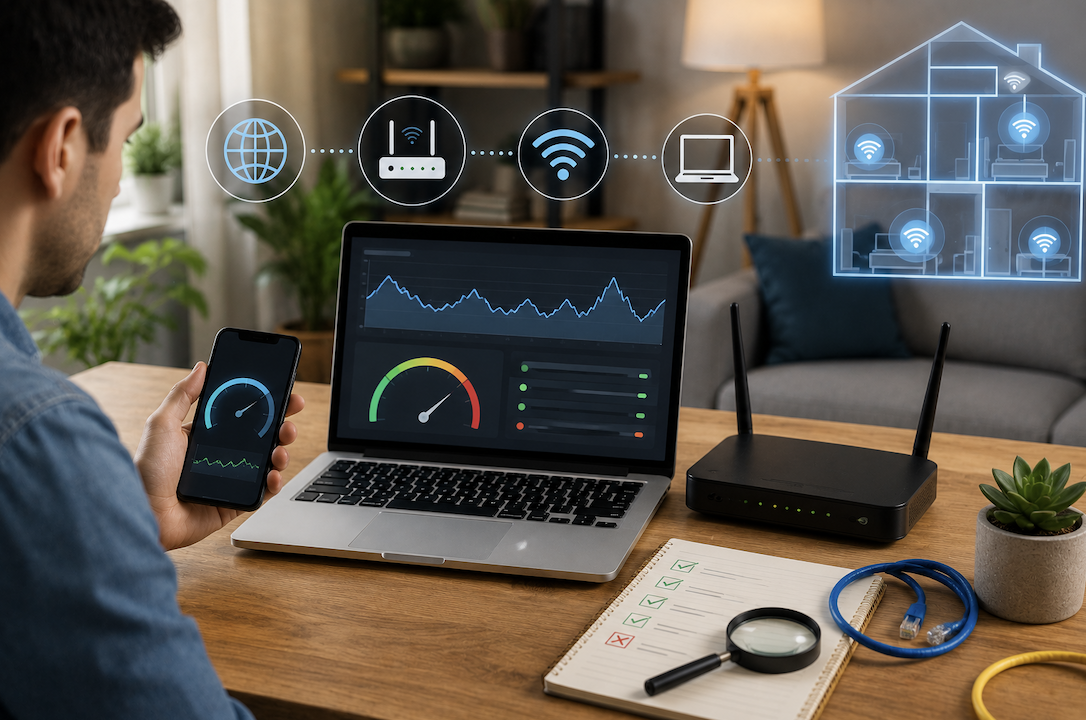
A home internet connection that feels sluggish, with video calls freezing, streaming buffering constantly, or web pages loading slowly, is a genuinely common frustration, and the underlying cause is not always obvious without some systematic troubleshooting. Before calling your internet provider or assuming you simply need a faster plan, working through a structured diagnostic process can often identify, and sometimes resolve, the actual underlying issue yourself. This article walks through a practical, step-by-step approach.
Step One: Establish Your Actual Baseline Internet Speed
Before diagnosing anything else, it helps to establish exactly what speed your connection is actually delivering compared to what you are paying for, since this baseline comparison immediately clarifies whether the fundamental issue involves your actual internet plan or something happening within your home network specifically.
- Run a speed test using a reputable, well-established speed testing service
- Test using a device connected directly to your router via an Ethernet cable for the most accurate baseline reading
- Compare this result against your actual subscribed internet plan speed
- Run this test at different times of day, since some slowdowns are specifically tied to peak usage hours
A significant, consistent gap between your actual measured speed and your subscribed plan speed suggests an issue with your internet service itself, worth discussing directly with your provider, while results reasonably close to your subscribed speed suggest the issue more likely involves something within your home network setup specifically.
Step Two: Isolate Whether the Problem Is Wired or Wireless
A genuinely important diagnostic step involves determining whether your slowdown affects only wireless connections or also affects devices connected directly via Ethernet cable, since this distinction significantly
narrows down where the actual underlying problem likely exists.
- Test speed using a device connected directly to your router with an Ethernet cable
- Compare this wired result against speed tests performed over your Wi-Fi connection
- A significant gap between wired and wireless results points toward a Wi-Fi-specific issue
- Similar results across both connection types suggest the problem lies elsewhere, potentially with your actual internet service
If your wired connection performs significantly better than your wireless connection, the underlying issue likely involves your Wi-Fi setup specifically, such as router placement, interference, or an outdated wireless standard, rather than a problem with your actual internet service itself.
Step Three: Check How Many Devices Are Actually Connected
Modern homes often have considerably more devices connected to their network than people initially realize, and each additional actively used device consumes a portion of your available bandwidth, potentially contributing meaningfully to overall slowdown, particularly during periods of heavy simultaneous use.
- Check your router’s admin interface to see a full list of currently connected devices
- Identify unfamiliar devices that might indicate unauthorized network access
- Consider how many devices are actively streaming, downloading, or video calling simultaneously
- Temporarily disconnect non-essential devices to see whether this meaningfully improves performance for your priority task
Discovering an unexpectedly large number of connected devices, or unfamiliar devices you do not recognize, both provide genuinely useful diagnostic information, potentially explaining a slowdown through legitimate bandwidth competition, or in the case of unfamiliar devices, suggesting unauthorized access worth addressing through improved network security.
Step Four: Evaluate Your Router’s Physical Placement
Router placement significantly affects Wi-Fi signal quality throughout your home, and a router positioned poorly, whether tucked away in a closet, surrounded by physical obstructions, or positioned far from where you primarily use your devices, can genuinely contribute to perceived slowness that has nothing to do with your actual internet service quality.
- Position your router in a central, open location rather than a closet or corner
- Elevate the router somewhat, since signal generally propagates better from an elevated position
- Minimize physical obstructions, particularly thick walls, metal objects, and large appliances near the router
- Keep the router away from other electronics that can cause wireless interference, like microwaves and cordless phones
Step Five: Check for Wireless Interference From Other Networks
In densely populated areas, particularly apartment buildings, your Wi-Fi network may be competing for the same limited wireless frequency space as numerous neighboring networks, creating genuine interference that can meaningfully affect performance.
- Check how many neighboring Wi-Fi networks are visible from your router’s location
- Consider switching your router to a less congested wireless channel if significant overlap exists
- Many modern routers offer an automatic channel selection feature that can help address this issue
- Dual-band or tri-band routers can help by distributing devices across less congested frequency bands
Step Six: Restart Your Networking Equipment
This step sounds almost too simple to be genuinely effective, yet restarting your router and modem resolves a surprising number of network performance issues, since this clears accumulated temporary glitches and refreshes the connection with your internet provider.
- Power off both your modem and router completely, waiting at least thirty seconds before restarting
- Restart the modem first, allowing it to fully reconnect before powering the router back on
- This simple restart resolves many temporary performance issues without requiring further troubleshooting
- Consider restarting your networking equipment periodically as routine, preventive maintenance
Step Seven: Check for Firmware Updates and Outdated Equipment
Outdated router firmware or genuinely aging networking equipment can meaningfully contribute to performance issues, particularly if your equipment predates more recent, faster Wi-Fi standards that modern devices are increasingly designed to take advantage of.
- Check whether your router has any pending firmware updates available
- Consider your router’s age, since equipment more than four or five years old may lack modern performance features
- Evaluate whether your current equipment supports the wireless standards your newer devices are capable of using
- Weigh the cost of upgrading equipment against the genuine performance improvement it would likely provide
Step Eight: Consider Whether Specific Apps or Devices Are the Actual Culprit
Sometimes a genuinely slow-feeling network is not actually about your overall connection at all, but rather about a specific application, device, or background process consuming a disproportionate share of your available bandwidth without your awareness, creating the impression of a broader network problem when the issue is actually more narrowly contained.
Checking which specific applications and devices are actively using bandwidth at a given moment, through your router’s admin interface or dedicated network monitoring tools if available, can reveal a background download, an automatic cloud backup process, or a specific device consuming considerably more bandwidth than expected. Identifying and addressing this specific culprit, rather than assuming your entire network or internet plan is fundamentally inadequate, often resolves the perceived slowdown considerably more efficiently than broader troubleshooting or unnecessary plan upgrades.
- Specific applications or background processes can consume disproportionate bandwidth without obvious warning
- Router admin interfaces or dedicated monitoring tools can help identify these specific bandwidth consumers
- Automatic cloud backups and background downloads are common, often overlooked culprits
- Addressing a specific identified culprit is often more efficient than broader, unfocused troubleshooting
Final Thoughts
Diagnosing a slow home network involves a genuinely systematic process: establishing your actual baseline speed, isolating whether the issue is wired or wireless, checking connected devices and router placement, and ruling out simple fixes like restarting equipment before considering more significant changes. Working through these steps methodically often reveals the actual underlying cause, saving you from unnecessarily upgrading your internet plan or replacing equipment that was never genuinely the source of the problem in the first place.
Frequently Asked Questions
1. How do I know if my slow network is actually my internet provider’s fault?
If a wired speed test consistently shows results significantly below your subscribed plan speed, even after ruling out excessive simultaneous device usage, this points toward an issue with your actual internet service worth discussing directly with your provider.
2. Does the time of day actually affect my internet speed?
Yes, particularly for internet plans that share bandwidth capacity across a neighborhood, peak usage hours in the evening can genuinely result in noticeably slower speeds compared to quieter periods, even without any change to your own home network setup.
3. Can too many connected devices really slow down my internet noticeably?
Yes, particularly if several devices are simultaneously performing bandwidth-intensive tasks like streaming high-definition video, large downloads, or video calls, since each device draws from your overall available bandwidth capacity.
4. Should I upgrade my router if these troubleshooting steps do not resolve the issue?
If your router is several years old, particularly if it does not support more recent wireless standards, upgrading to newer equipment often provides a genuinely meaningful performance improvement, particularly for households with many connected devices.
5. Is it worth paying for a faster internet plan if my network still feels slow?
Only if your diagnostic testing specifically points toward your actual internet service as the bottleneck, since upgrading your plan will not resolve issues actually caused by router placement, network congestion, or outdated home networking equipment.